
Desktop Goose on PC: How to Add a Playful Chaos Companion Safely
Get Desktop Goose App for Free
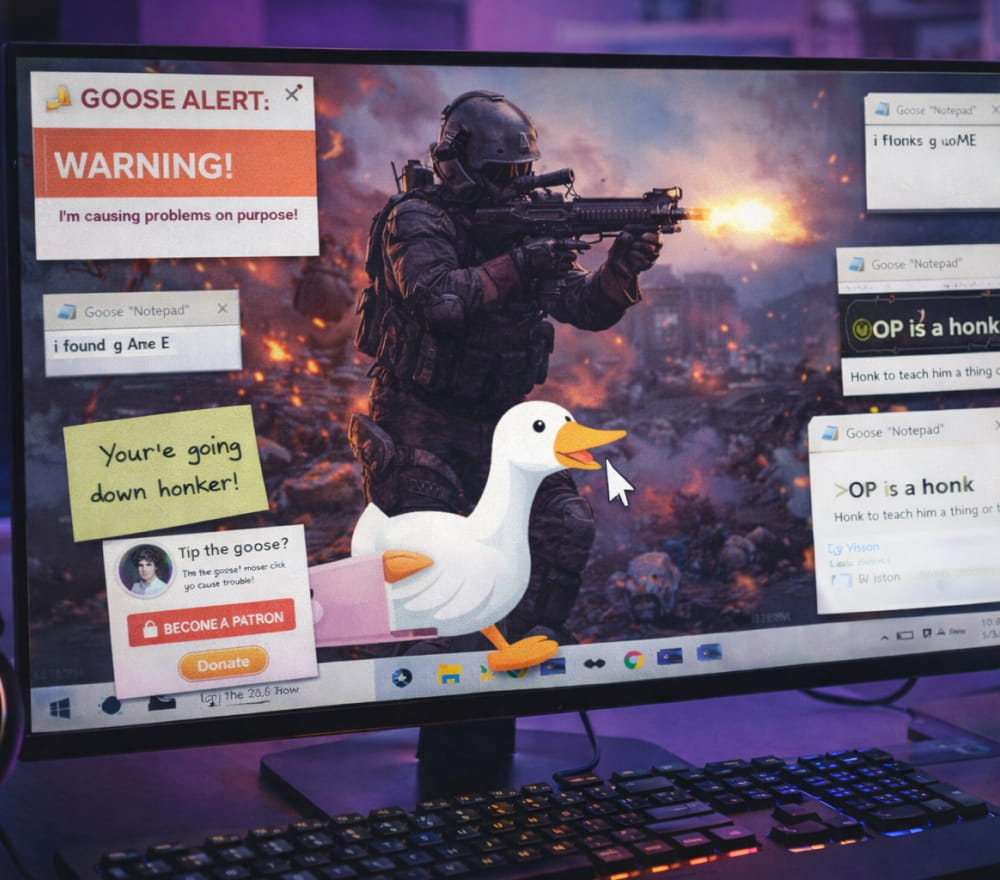
Download NowIf you’re curious about a mischievous desktop companion, Desktop Goose on PC can turn routine workdays into a playful mess, without touching your files. This tiny troublemaker waddles across your screen, drags windows, steals your cursor, and leaves little “presents” that are easy to clear away. It’s not a productivity tool more like a digital prank that you can enable, pause, and remove whenever you want.
What Desktop Goose Does (and What It Doesn’t)
- Does: wander around, honk, pull items, scribble notes, and generally distract you in a harmless way.
- Doesn’t: delete your documents, “hack” your PC, or permanently change system settings when you use a legitimate copy.
Think of it like a desktop pet with a chaotic streak: entertaining in short sessions, and best used when you’re in the mood for a laugh.
How to Get It Safely
For a clean install experience, look for the developer’s official page or a reputable hosting platform, because a Desktop Goose for PC download from random mirrors can bundle unwanted extras.
- Download the archive or installer from our fan website.
- Scan the file with your antivirus (a quick habit that pays off).
- Extract it to a simple folder you can find later (for example, inside Documents).
- Run the executable, and allow it only if you recognize the publisher/source.
First Launch Tips
Some people enjoy a short burst of chaos, while others prefer a calmer desktop. Start it when you have a few minutes to watch the antics, then decide whether it’s a “sometimes” app or an everyday sidekick.
- Keep it temporary: run it only when you want a break.
- Keep it contained: close sensitive work before enabling any prank-style app.
- Know the exit: learn the quit/stop method so you’re never stuck.
Free Options and What Free Should Mean
When people say they want Desktop Goose on PC for free, the safest interpretation is using an official free release or a legitimate “pay-what-you-want” page, rather than shady repacks.
Before installing anything, check for these green flags:
- Clear publisher attribution and a known community link (dev page, verified profile, or established platform).
- Comments or release notes that match what you downloaded.
- No surprise “download manager” or unrelated installer steps.
Quick Troubleshooting
If it launches but you don’t see anything, try these steps:
- Check whether it’s running in the taskbar or system tray.
- Close full-screen apps (some overlays hide desktop pets).
- Run it as a normal user first; only use admin rights if the publisher explicitly instructs it.
- Temporarily disable conflicting desktop overlay tools, then test again.
If you specifically want Desktop Goose for free on PC, make sure your source provides the same file version as the official release notes, so you’re not trading convenience for risk.
Practical Use Cases
Desktop Goose shines in small, lighthearted moments:
- Icebreakers during a casual screen-share (with permission).
- A quick laugh between tasks like a digital stress ball.
- Personalizing a home PC that doesn’t need to be distraction-free.
Settings, Control, and Clean Removal
Many users prefer a setup that’s easy to pause and easy to uninstall. If you’re looking for Desktop Goose free to download for PC, prioritize versions that clearly explain how to stop it and where it stores its configuration.
| Task | Recommended Approach | Why It Helps |
|---|---|---|
| Stop the goose | Use the app’s quit option or close it via Task Manager | You stay in control if it gets distracting |
| Prevent auto-start | Disable startup entry in Windows settings | Avoid surprises during work or meetings |
| Uninstall cleanly | Remove the folder and any startup shortcut it created | Leaves your system tidy afterward |
Common Questions
Is it safe?
It can be safe when you download from a trusted, official source and scan the file first. If your antivirus flags it, don’t ignore that verify the file origin and compare it with the official release page.
Will it slow my computer?
On most modern PCs, it should be lightweight, but any extra program can add minor overhead. If your machine is older or you’re running intensive software, keep it off during heavy workloads.
Where should I avoid using it?
Skip it on shared work computers, during important presentations, or on systems where playful distractions aren’t appropriate.
A Smart Download Mindset
If your goal is Desktop Goose download for free, focus on legitimacy first: the “best” free option is the one that doesn’t add toolbars, installers, or questionable permissions. And if a site pushes a confusing multi-step download for Desktop Goose for free, it’s usually better to leave and find an official or widely trusted page instead.