
Desktop Goose on Chromebook: Taming the Mischief
Get Desktop Goose App for Free
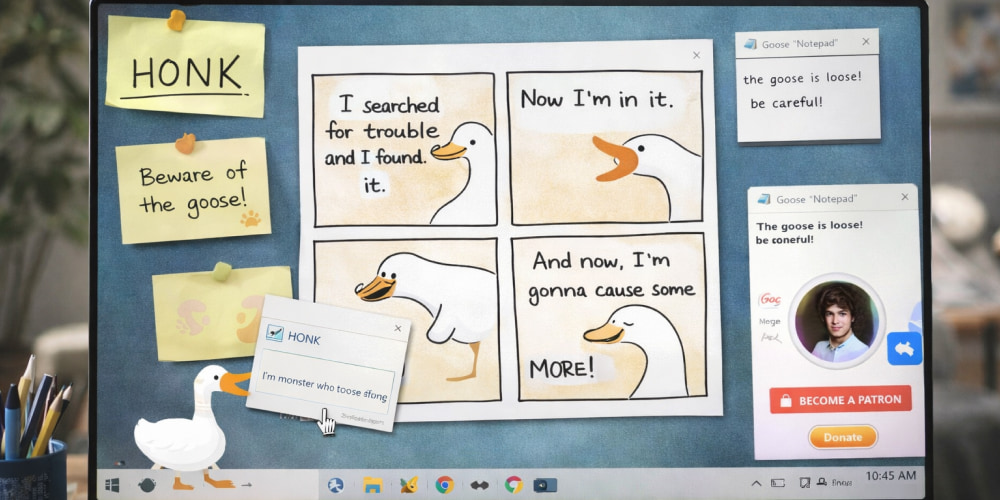
Download NowDesktop pranks can be surprisingly memorable, and few are as instantly recognizable as the chaotic little goose that drags windows, drops notes, and generally turns your screen into a comedy sketch. On a Chromebook, though, the path to that same mischief looks different because ChromeOS is built around web apps, Android apps, and (optionally) Linux containers rather than classic Windows programs.
Before you install anything, decide what you want: a faithful “goose on the desktop” effect, or simply a playful pet that pops up while you work. Many users try Desktop Goose on Chromebook as a lighthearted way to break up routine.
Quick Compatibility Reality Check
Most Chromebooks cannot run Windows .exe files natively, which is what many classic desktop toys were built for. Your most common options are:
- Android apps (via Google Play, if your Chromebook supports it)
- Linux apps (via Linux Development Environment / Crostini)
- Web alternatives (browser-based “desktop pet” style pages)
Tip: Treat “desktop prank” software like you’d treat browser extensions—only install from sources you trust, and uninstall quickly if anything feels off.
Use Linux (Best for Tinkerers)
If your Chromebook supports Linux, you can sometimes run lightweight desktop utilities inside the Linux container. This won’t magically make Windows apps work, but it can open doors to similar “desktop pet” tools built for Linux, or to community ports that run in a Linux environment.
- Open Settings on your Chromebook and look for Developers or Linux development environment.
- Enable Linux and wait for the container to finish setting up.
- Install apps only from reputable Linux repositories, and prefer open-source projects when possible.
Because Desktop Goose on Chrome OS isn't officially supported, you’ll generally need an alternative method like Linux or a safe substitute.
Look for an Android-Friendly Alternative
Some Chromebooks can run Android apps well, and that can be the simplest route for playful on-screen companions. The tradeoff is that Android apps behave like mobile apps, so they may not fully integrate with the “desktop” in the same way a traditional PC utility does.
- Check whether your Chromebook has Google Play enabled.
- Search for “desktop pet” or “screen pet” apps with strong reviews and clear permissions.
- Avoid apps that request unrelated access (SMS, call logs, device admin) for a simple visual toy.
Some tutorials claim you can download Desktop Goose app for Chromebook via Android, but it’s smartest to be cautious with unofficial ports.
Safe Download Habits (No Matter What You Choose)
Even when your goal is harmless fun, prank software is a common disguise for bundlers and adware. If you’re browsing around for installers, follow a safety checklist:
- Prefer official project pages, well-known repositories, or reputable stores.
- Scan downloads with a trusted antivirus service on another machine if possible.
- Reject installers that push “recommended” extras, toolbars, or mystery launchers.
- Create a simple rollback plan: know how to uninstall quickly.
If you search for Desktop Goose download for Chromebook, focus on source reputation first and file integrity second.
What Download Really Means on Chromebooks
On Windows, many desktop toys are “download and run.” On ChromeOS, it’s “download and adapt,” meaning you’re usually choosing an environment (Android or Linux) and then picking software that fits that environment.
When people say they want to download Desktop Goose for Chromebook, they’re often looking for an experience equivalent to the Windows version rather than the same file type.
Performance and Battery Considerations
A constantly moving, always-on animation can impact battery life—especially on lower-end Chromebooks. Here are practical ways to keep the joke fun without making your laptop suffer:
- Lower the number of background apps running at the same time.
- Disable the pet when you need maximum battery or focus.
- Restart ChromeOS after uninstalling to ensure all background processes stop.
Troubleshooting Guide
| Issue | Likely Cause | Fix |
|---|---|---|
| App won’t install | Not compatible with ChromeOS (wrong platform) | Try an Android or Linux alternative designed for your environment |
| Lag or stutter | Low resources or too many background tasks | Close tabs, disable extensions, reduce background apps |
| Battery drains fast | Constant animation and active processes | Use it in short sessions, then fully quit or uninstall |
| Pop-ups or ads appear | Bundled installer or adware | Uninstall immediately, review extensions, run a security check |
Free vs. Safe: A Useful Distinction
Free is appealing, but “safe and clean” matters more—especially on devices tied to school or work accounts. Before assuming Desktop Goose for Chromebook free to download, verify licensing details and avoid third-party installers that add unwanted extras.
How to Uninstall Cleanly
- Android app: Right-click the app icon in the launcher and choose uninstall.
- Linux app: Remove it via your package manager, then restart the Linux container if needed.
- Browser-based option: Close the tab, clear site permissions if you granted any, and remove related extensions.
Final Thoughts
ChromeOS is capable, but it plays by different rules than Windows desktops. If your goal is the authentic goose chaos, the best approach is to choose a method that matches how your Chromebook runs software and keep your downloads conservative.
Many guides mention Desktop Goose on Chrome OS as if it’s a one-click install, but a careful setup and a trusted source make all the difference.
With the right approach, you can get a fun “desktop pet” vibe without turning your Chromebook into a mess—and you’ll still be able to shut the goose down the moment the joke has run its course.