
A Practical Desktop Goose Install Guide for Windows Users
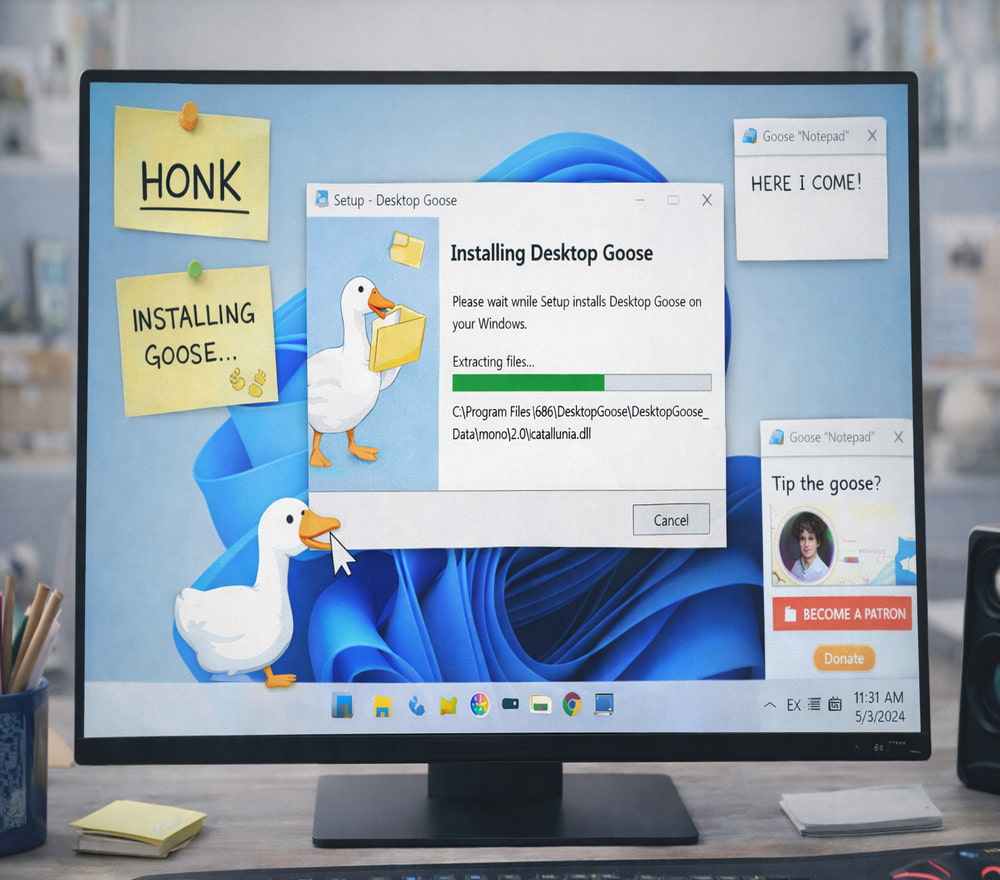
Get Desktop Goose App for Free
Download NowIf you’ve seen clips of a mischievous goose dragging windows around the screen, you already know the vibe: it’s a tiny desktop “pet” that turns your PC into a playful mess. Before you start, it helps to treat any download like you would a new utility—verify the source, scan the files, and keep a clean way to remove it if you change your mind.
Tip: Create a restore point before adding any new desktop companion app, especially if you like to keep your system pristine.
What You Need Before You Begin
- A Windows PC with permission to run downloaded apps (admin rights help).
- Windows Security (or another trusted antivirus) enabled and up to date.
- A folder where you keep installers so you can find them later.
Step 1: Choose a Safe Source and Download
Start by selecting our fan website for the installer, then double-check the filename and publisher details where possible. Many users search for a quick way to install Desktop Goose, but it’s worth taking an extra minute to avoid repacked files.
When you’re ready, perform a fresh download and keep the original archive in case you need it later; this is also a good moment to run a quick malware scan on the file before opening it. If you prefer a simple path, Desktop Goose download and install can be completed in just a few minutes when the file comes from a trusted location.
Step 2: Extract and Launch Correctly
Most releases arrive as a ZIP archive. Extract it into a dedicated folder (for example, “C:\Apps\DesktopGoose”) so you don’t lose the executable among random downloads. After extraction, open the folder and locate the main app file to proceed with the Desktop Goose install.
Quick Checklist Before You Run It
- Scan the extracted folder with your antivirus.
- Check that you’re not running anything else suspicious in the same directory.
- Close important work documents—this goose loves to interrupt.
Step 3: First Run and Basic Controls
On first launch, Windows may show a SmartScreen prompt; read it carefully and proceed only if you’re confident about the source. Once it starts, you’ll immediately see why people call it an “interactive prank.” If your goal is to install Desktop Goose game as a lighthearted distraction, test it for a minute and confirm you can close it easily.
For many builds, you can exit by closing the app from the system tray or ending the process in Task Manager if it gets too chaotic. Keep Task Manager in mind as the universal “stop” button.
Windows-Specific Notes
If you want it to behave consistently, check that your Windows user account can write files to the folder where it lives. Some setups work best when you install on Desktop Goose on Windows from a non-restricted directory (avoid protected system folders unless you know what you’re doing).
Optional: Set It to Run at Startup (If You Really Want the Chaos)
Some versions support startup behavior via shortcuts or simple configuration. If yours doesn’t include a built-in option, you can add a shortcut to the Windows Startup folder. Be cautious—autostart can be annoying if you forget it’s enabled.
Uninstall and Cleanup
Because this is often a portable app, removal is usually straightforward: close the program, delete the folder you extracted, and remove any startup shortcut you added. If you want a tidy approach to Desktop Goose installation, keep everything inside one folder so you can remove it cleanly later.
Troubleshooting Common Issues
| Problem | Likely Cause | Fix |
|---|---|---|
| App won’t start | Blocked by security settings | Scan the file, then check SmartScreen/antivirus history and allow only if you trust the source |
| Goose won’t close | No visible exit option | Open Task Manager and end the related process |
| It starts every boot | Startup shortcut enabled | Remove the shortcut from the Startup folder and restart |
| Performance feels worse | Extra effects or older PC | Close other apps, test in a smaller resolution, or run it only when you want it |
Responsible Downloading
It’s common to see sites advertising install for Desktop Goose free to download, but don’t treat that phrase as a guarantee of safety. Favor official developer pages or widely trusted hosting platforms, and avoid installers that bundle unrelated software.
Final Notes
Once you’re happy with your setup, keep the extracted folder somewhere easy to find so you can update or remove it later. If you run into issues, repeating the process from a clean folder and confirming permissions often resolves most Desktop Goose install problems.